Big-Screen Viewing in Small Spaces: 1080p Smart Mini
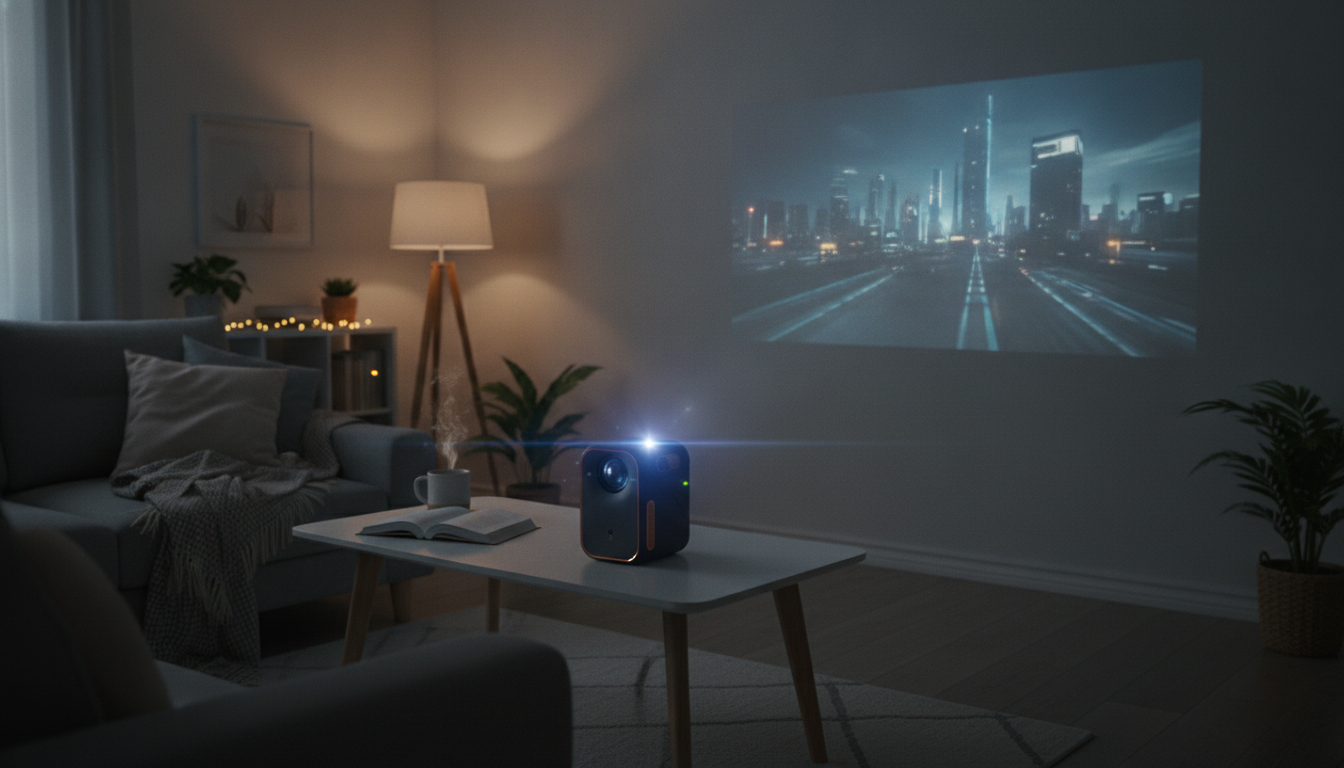
Big-Screen Entertainment, Small-Space Friendly
A compact projector can make weeknights feel like a theater run—without giving up wall space to a giant TV. The 1080P Full HD Mini Home Cinema Projector with Smart Features is designed for easy, everyday viewing: crisp 1080p playback, simple connections for streaming and consoles, and a setup routine that’s more “press play” than “project weekend project.” It fits naturally into a living room, bedroom, or a casual backyard movie night when lighting is under control.
What this projector is best for
- Movie nights and series streaming on a large screen without a TV-sized footprint.
- Bedroom and apartment setups where portability and quick teardown matter.
- Occasional outdoor use with a proper screen and controlled lighting.
- Family use: straightforward controls, easy source switching, and quick setup.
For outdoor hangouts that double as movie nights, pairing a portable projector setup with a roomy shelter can make the experience more comfortable when bugs, wind, or surprise drizzle show up. If that’s your style of weekend, the Spacious 6-8 Person Waterproof Camping Tent with Three Rooms can serve as a convenient staging area for snacks, seating, and gear (while keeping sensitive electronics protected when the weather shifts).
Picture quality and viewing comfort
Full HD (1080p) playback is a practical sweet spot for home projection. At larger screen sizes, it helps keep faces, subtitles, and streaming app menus readable—especially when the content includes fine text or fast-cut scenes.
- Control ambient light for best results. Curtains, dimmer lamps, and a darker room do more for perceived contrast than most settings tweaks.
- Start square, then fine-tune. Place the projector as centered and level to the screen as possible, then refine focus and alignment.
- Walls work, screens work better. A smooth matte wall looks cleaner than glossy paint, but a dedicated screen typically improves perceived brightness and contrast.
If the image looks slightly “soft,” it’s often a geometry issue rather than resolution—minimizing heavy keystone correction and keeping the lens square to the screen usually restores sharpness.
Smart-friendly features and everyday convenience
Modern viewing habits usually mean rotating between streaming apps, a console, and the occasional laptop. A smart-friendly projector setup is less about complicated menus and more about quick access to the right source with minimal friction.
- Streaming-first flexibility: use a streaming stick or box for consistent app support and familiar interfaces.
- Easy device switching: practical for homes that jump from a show to a game to a slideshow in one evening.
- Wireless accessory friendly (via the source): many streaming devices and consoles support Bluetooth headphones or speakers, which can help keep nighttime viewing quiet.
- Handy as a second display: when connected to a laptop (or a compatible adapter), it can work for presentations, photos, and casual group viewing.
For reliable streaming, prioritize a stable Wi‑Fi signal at the streaming device location and keep the device’s apps and firmware updated. If you run into compatibility questions, authoritative help pages like the Netflix Help Center can clarify device requirements and playback troubleshooting.
Connectivity and device compatibility
The simplest projector experience comes from planning around the devices you’ll actually use most often—typically a streaming stick/box, a game console, or a laptop. For best 1080p reliability, use a quality HDMI cable and avoid unnecessary splitters or adapters when possible. For deeper technical details on HDMI standards, the official HDMI Specification Overview is a useful reference.
- Streaming sticks/boxes: a consistent way to get current apps and easy login syncing.
- Consoles: ideal for big-screen party games and sports apps, plus predictable HDMI output.
- Laptops: excellent for local files, web playback, or presentations; set output to 1920×1080 for best clarity.
- Phones/tablets: check whether your device supports video output (USB‑C Alt Mode, MHL) or use wireless casting through a streaming device.
Common setup options
| Use case | Recommended source | Audio suggestion | Notes |
|---|---|---|---|
| Streaming movies/TV | Streaming stick or box via HDMI | Soundbar or powered speakers | Keep the streaming device updated for app compatibility |
| Console gaming | Game console via HDMI | External speakers or headset via console | Use Game Mode (if available) and reduce extra video processing |
| Laptop playback | Laptop via HDMI | Laptop audio or external speakers | Set display resolution to 1920×1080 for best clarity |
| Outdoor movie night | Streaming box + long HDMI (or local files player) | Portable speaker | Use a screen; control ambient light as much as possible |
Placement, screen size, and room tips
Placement impacts picture quality more than most people expect. A stable surface and good alignment reduce the need for corrective processing and keep the image looking cleaner.
Sound strategy: built-in vs. external
If you want guidance on speaker positioning and home theater basics, resources like Dolby’s home theater guides can help you get better results without overcomplicating the setup.
Care, longevity, and troubleshooting basics
Who should consider a different option
FAQ
Does a Full HD projector play 4K content?
Many Full HD projectors can accept a 4K signal from a streaming device and downscale it to 1080p for display. The projected output remains 1080p, and some services may require compatible devices and copy-protection support to play certain titles.
What’s the easiest way to stream apps on a projector?
Using a streaming stick or streaming box via HDMI is usually the most consistent option for app availability and updates. For smooth playback, make sure the streaming device has a stable Wi‑Fi connection and stays current on software updates.
How can dialogue sound clearer without a full surround system?
A soundbar with a dialogue/voice mode is one of the simplest upgrades for clearer speech. Position speakers toward the audience, avoid overly bass-heavy EQ, and use a wired connection if Bluetooth introduces noticeable lip-sync delay.










Leave a comment